[Site Name]
[domain_name]
(999) 999-9999
[address1]
[address2]
[City, State Zip]
Touch Screens
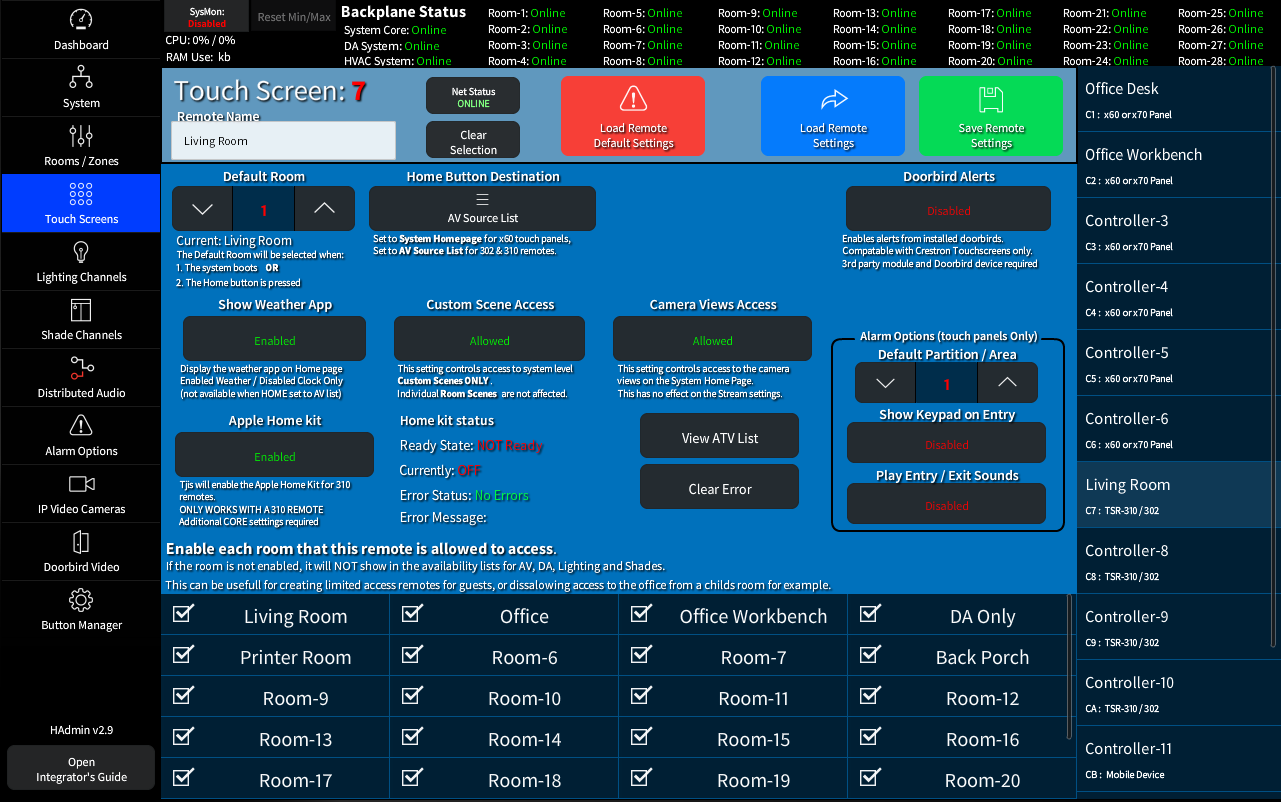
The Touch Screens page allows configuration of the individual Touch Screen Based remotes. Some options are restricted to certain remote types and defined by the 'Home Button Destination' option in the Base Setings Section shown below.
The NetStatus button will show its cvonnection status in the system
(sleeping remotes may show as offline until woken by movment or a button press).
Always remember to save your changes.
Note: All remotes are in the Cx portion sof IP-ID's (C0 is used for the Admin while C1-CD are user Touch Screens)
Base Settings
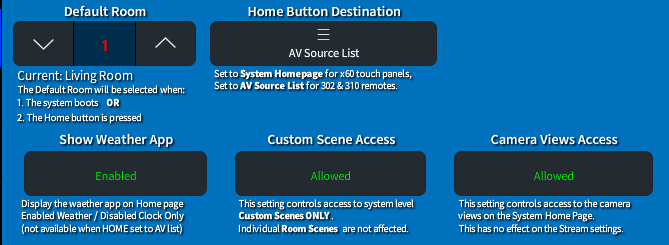
The Base settings allow you to set the Default room for the remote, and type of remote used.
For a 310 remote set it to AV Source List.
For TSW Touch Screens set it to System Homepage.
With the system Homepage Selected (TSW Touch Screens Only) you can then activate the additional features of the home page.
- The Weather app will show local weather for the client.
With Weather Disabled, a Clock with the current Data and Time will be shown.
Note: (setting the Zip Code in the Interface project is recommended when using the Weather App) - Custom Scene access will allow the remote to view and use the Custom Scene Activator (System Level Scene that are schedulable).
- Camera Views are available when the Ip Video Camera System is enabled. This allows for quick access to the configured cameras feeds from the Touch Sceen Home Page.
Apple TV Setup
(TSR-310 Only)

Use of the Crestron Apple Home Kit Integration features requires that the processor and remote be properly configured. Once setup the system will use the configured TSR-310 via the Apple Home Kit API.
In the event of an error, the system will fallback to IR controls (which are already required for all other remote types) however the Apple Home Kit advanced feature will NOT be available while in Error.
The User will also have a error status message on the remote that can be reset (in most situations) from the remotes touch screen to re-enable Apple Features.
Note: Apple Home Kit Setup is required on both the processor and remote in order for this section to have any effect.
See: Crestron Apple Homekit Setup for full details
Advanced Options
(TSW Touch Panels only)
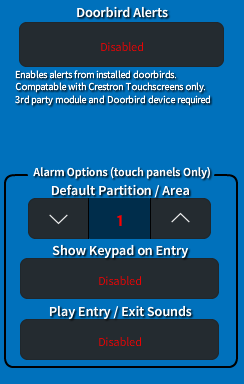
- Enabling the Doorbird Alerts will allow this Touch Screen to receive Video Doorbell calls
(Additional configuration on the Doorbird Video Page is required) - The Alarm options (additional alarm, module, and programming required) allows you to configure this remote for particular zones / partitions. You can also enable / disable door open alerts from the panel.
Available Rooms
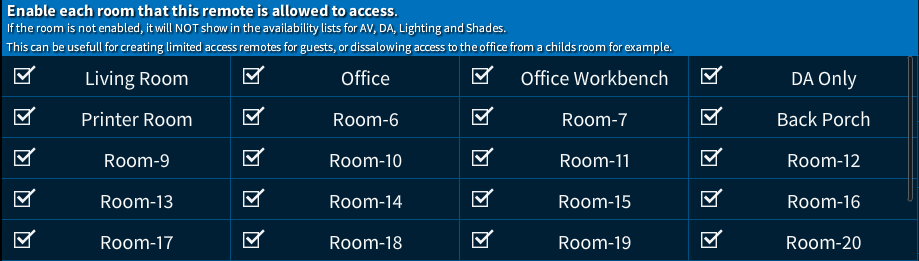
Select the Rooms / Zones that will be available for control from this remote.
Only Checked rooms will be shown in this remotes Rooms / Zone lists.
Note: This section is available on Touch Screens, Lighting, and Shades that allow for access / assignment of the remote / channels to a room